The Frame-Rate Surcharge: Auditing a 120fps Scene on a Modest Kit

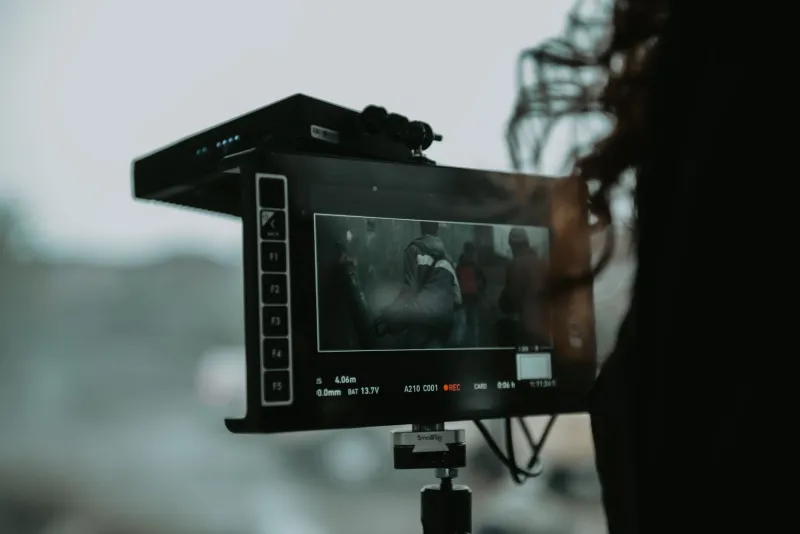
Photo: indie filmmaker setting high frame rate camera slow motion scene with LED lighting and monitor, via img.freepik.com
Slow motion is the camera feature that sells itself in a 15-second clip: hair flipping, dust blooming, a skateboarder hanging in the air. On a modest indie kit, though, 120fps is less a magic button than a line item. It changes how much light you need, how fast your cards fill, how you record sound, and how long you sit in front of Resolve. None of that shows up in the spec sheet, which is exactly why it belongs in your budget conversation.
The Spec Sheet Stops at the Frame Rate
In 2026, the pitch is familiar. A sub-$2,500 mirrorless body advertises 120fps, usually with an asterisk. Maybe it crops the sensor. Maybe it drops to 8-bit. Maybe autofocus gets wobbly or the codec changes to something your older editing machine would rather not meet. Those caveats are not deal-breakers, but they are cost shifts. A crop means you need a wider lens or a longer room. A weaker codec means more grading work. A different file type means your offload and conform workflow changes.
The mistake is treating 120fps as a free creative option. It is a production decision with a bill attached.
Light Is the First Bill
Here is the math that catches people. At 24fps, a 180-degree shutter gives you roughly 1/48 of a second. At 120fps, the equivalent shutter is about 1/240. That is more than two stops less light hitting the sensor. Your lens, your fixtures, or your ISO has to make up the difference.
On a small set, two stops is not a rounding error. A 300W LED that felt comfortable at 24fps suddenly feels like a much smaller light. Opening the aperture helps until you run out of lens or depth of field. Raising ISO helps until the shadows get noisy. Adding a fixture helps until you realize you need another stand, another cable, and another person to watch it.
Outdoors, the sun does not care about your frame rate. You may need a faster lens or a bigger bounce just to keep the same exposure. That is why a slow-motion scene often looks best in bright, controlled daylight or in a studio where you can pour on light. If your plan is a moody available-light interior, 120fps may be the wrong tool for the scene.
Cards, Storage, and the Waiting Game
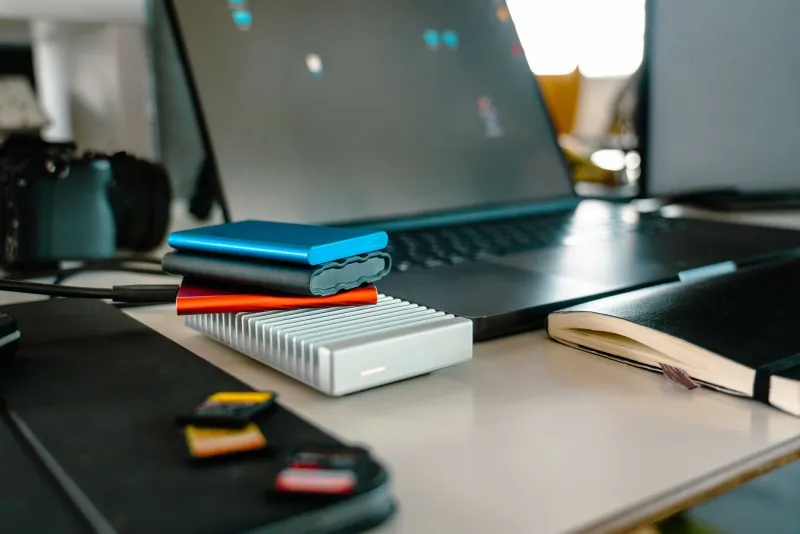
High frame rate means more frames, and more frames mean more data. Even when a camera uses a lower-bitrate codec for slow motion, the clip still occupies more space than the same real-time action shot at 24fps. A 30-second burst of action recorded at 120fps becomes 150 seconds of footage when conformed to a 24p timeline. That is five times the playback duration, and often five times the headache when you are scrubbing through takes.
Card write speed matters too. Some cameras will happily record 120fps until the buffer fills, then stutter or stop. A card that works fine for 24fps may not sustain the write rate for a long slow-motion take. Before a shoot, test the exact card, codec, and resolution combination for at least a full minute. Not a ten-second test. A full minute. Then offload it and see how long that takes.
This is also where a cheap card becomes expensive. If you lose a hero take because the card could not keep up, the money you saved is irrelevant.
Flicker and Audio Do Not Get a Slow-Mo Pass
At 1/240 shutter speed, LED fixtures and practicals can flicker in ways you did not see at 1/48. In the US, 60Hz power and certain dimmers can create banding that shows up as rolling bars or pulsing exposure. Some cameras have anti-flicker tools, but they are not a substitute for testing the actual lights on the actual set. Dimmed LEDs are the usual suspect. If you cannot swap the fixture, you may need to adjust shutter angle slightly, which changes the look, or move the shot.
Audio is the other quiet cost. Camera audio recorded at 120fps can sound slowed down or pitched oddly when conformed, and it is rarely useful. Plan to record sound separately and sync in post. That means a second recorder, a mic, and a clapper or sync point. It also means your edit has one more step before the fun part.
Conforming in Resolve Without Losing Your Weekend
In Resolve, the cleanest approach is usually to interpret the high-frame-rate clips at your timeline rate before editing. Select the clips, open Clip Attributes, and set the frame rate to 24 or 23.976 depending on your project. Then confirm that the clip plays back at the speed you expect. If you retime on the timeline instead, you can end up with nested clips, speed changes, and audio drift that take longer to untangle.
Do a conform test early. Drop one 120fps clip into a 24p timeline, check the duration, check the audio sync, and render a short section. If your machine chokes on playback, build proxies before you have a full timeline of slow-motion shots. The frame-rate tax does not end when the camera stops recording.
A Practical 120fps Checklist
- Ask whether the story moment actually needs slow motion. A 60fps shot is cheaper in light and storage, and sometimes it is enough.
- Budget at least two stops of light, or schedule the scene for daylight you can control.
- Test the exact camera, codec, card, and resolution for sustained recording, not just a short burst.
- Check every LED and practical for flicker at your chosen shutter speed.
- Record separate audio and plan sync before the shoot.
- Calculate storage as if the final clip will be five times longer than the real-time action.
- Conform a test clip in Resolve before the edit gets complicated.
- Keep slow motion for the shots that earn it. A whole scene at 120fps gets old fast.
When the Effect Earns Its Keep
Slow motion works when it reveals something the eye would otherwise miss: a reaction, a texture, a bit of physics. It works less well as a blanket style choice. On a modest kit, the real question is not whether the camera can shoot 120fps. It is whether you can afford the light, the cards, the audio plan, and the post time that make 120fps look intentional instead of accidental.
If the answer is yes, shoot it. If the answer is maybe, spend the money on production design instead. Your edit will thank you.